Key Mapper & Floating Buttons
sds100Personalization
3.5630.00 Reviews
- Version
- 4.2.1
- Installs
- 10.00M
- Age Rating
- Everyone
Screenshots
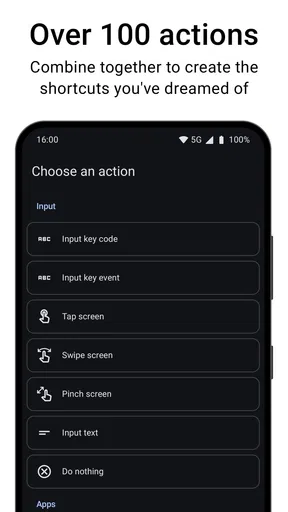
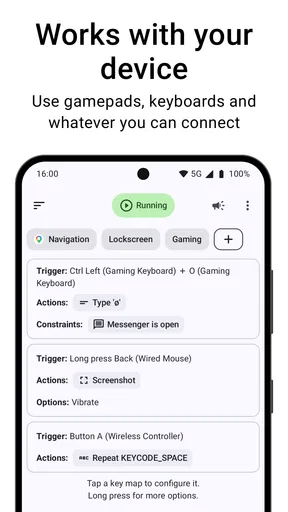
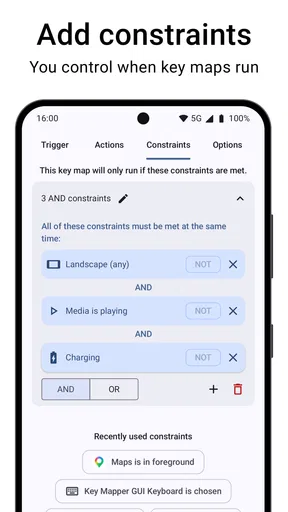
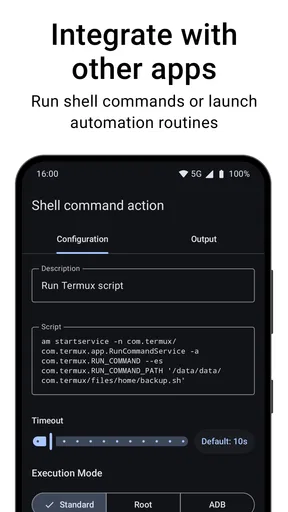
Our Review of Key Mapper & Floating Buttons
 Analysis by Appyee
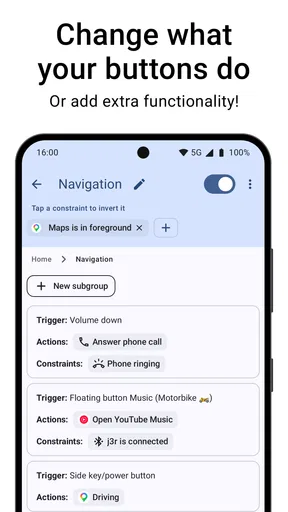
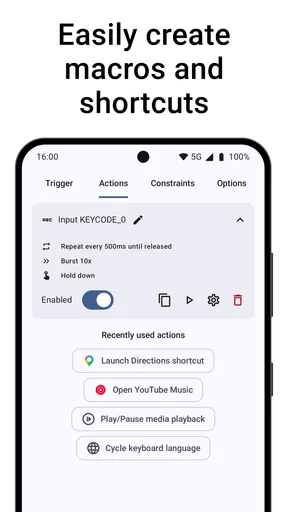
I spent time with Key Mapper & Floating Buttons because it solves a very specific Android problem: turning controls you already use into shortcuts that better match your habits. Instead of accepting every button’s default behavior, I could remap volume keys, the power button, keyboard keys, and floating controls for quicker access to actions I repeat throughout the day.
That makes this a personalization app with a practical purpose rather than a cosmetic one. It is not mainly about wallpapers or visual themes; it changes how I interact with the phone. The developer, sds100, has built something aimed at people who want more control over physical and on-screen inputs, while still keeping the basic idea understandable enough for everyday experimentation.
The app is free to install, rated for Everyone, and works on Android 8.0 or later. Its current version is 4.2.1. I would not describe it as universally effortless, though. The first shortcut is easy to imagine, but reliable remapping depends on choosing the right trigger, action, and activation pattern. Once those pieces make sense, the app becomes much more useful than its brief store summary suggests.
How I built a dependable shortcut routine
I build a dependable shortcut routine by treating each mapping as a small experiment, not a permanent change from the start. I choose a trigger I can distinguish from an ordinary press, then try it during the situation where I expect to use it; that makes accidental activations easier to spot. Once the routine feels natural, I can consider whether another shortcut genuinely adds value.
Start with one button and one clear action
My best results came from resisting the temptation to remap everything at once. I began with a single action I performed often and a trigger that was easy to recognize. For example, a volume-button gesture can be more convenient than opening an app drawer when I need the same task repeatedly. Starting small also made it easier to notice whether the shortcut was genuinely faster or merely interesting.
The important distinction is between a shortcut that saves effort and one that simply moves effort somewhere else. If an action requires an awkward press sequence, I am less likely to use it than the original method. Key Mapper & Floating Buttons is strongest when the chosen trigger fits the physical way I already hold the phone.
I also found it useful to give each shortcut a job rather than trying to make one gesture do too many things. A dedicated trigger for a frequent action is easier to remember, easier to troubleshoot, and less likely to interfere with normal volume or power controls. This is especially important on a phone shared between work, travel, and personal use, where accidental activation can become irritating quickly.
A realistic everyday setup
Imagine checking a shopping list while cooking. Your hands may be wet, your attention divided, and the usual sequence of unlocking the phone, finding the right app, and tapping through screens feels unnecessarily slow. A carefully chosen button action can reduce that routine to something more direct. The value is not dramatic automation; it is removing several small interruptions that happen many times.
In my experience, this kind of use is where the app feels most convincing. It helps when the phone is being used as a tool and the same action keeps appearing in a predictable situation. A floating button can also make sense when the physical keys are inconvenient, such as while the device is lying flat or mounted where reaching the side buttons is awkward.
For accessibility-minded users, the appeal is even clearer. A different trigger may be easier to reach or remember than a tiny icon. However, I would still test every shortcut slowly before depending on it. A remapped control that works well in one grip may be uncomfortable or too easy to activate in another.
Use habits, not a collection of random tricks
Experienced use comes from assigning shortcuts to repeatable habits. I would group them mentally: one control for navigation, one for a regular communication task, and perhaps a floating control for something I need while another app is open. This approach avoids the common mistake of creating a long list of clever mappings that I forget after a day.
There is also a useful trade-off between speed and discoverability. The default Android interface shows me where an action lives, while a custom key sequence lives in my memory. If I choose an unusual combination, I should write it down during the learning period or keep the mapping simple enough to recall naturally.
Settings that deserve attention before daily use
The trigger configuration is the first place I would spend time. A physical key can behave differently depending on whether it is pressed once, pressed repeatedly, or held. The exact choice matters: a gesture that feels deliberate is less likely to fire while I am merely adjusting sound or handling the phone.
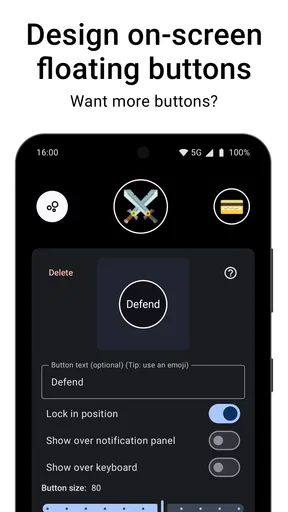
I would also check whether the selected action is appropriate for the context in which the shortcut will be used. A floating button placed over frequently tapped controls may create more friction than it removes. Position it where it remains reachable without covering the interface elements you use most. This is a small design decision, but it strongly affects whether the feature feels integrated or intrusive.
Another practical step is to test the mapping from the lock screen, inside another app, and after returning to the home screen. Shortcuts can feel perfect in a quiet test and less comfortable during real use. I would not assume that a mapping behaves identically in every situation simply because the trigger is the same.
Keyboard remapping deserves its own careful check. It can be valuable on a physical keyboard or a device used for longer writing sessions, but the cost of a mistaken key action is higher there. A shortcut that launches something unexpectedly while I am typing can interrupt a thought or cause an accidental command. For keyboard use, I prefer conservative actions and a trigger that is unlikely to be hit during ordinary typing.
Keep the original control in mind
Remapping a volume or power button changes a familiar part of the phone’s behavior. That is powerful, but it also means I need to preserve an intuitive way to perform the original function. If a shortcut takes over a button completely, I should choose a gesture or combination that leaves ordinary presses understandable.
This is one reason I prefer layered habits: a simple press can remain familiar, while a more deliberate pattern handles the custom action. The goal is not to make the device mysterious. It is to add a shortcut without turning basic operation into a puzzle.
The app’s free entry point makes this experimentation approachable, although in-app purchases range from $1.99 to $9.99 per item. I would first decide whether the core workflow fits my phone and habits before paying for anything. The useful question is not whether more customization sounds attractive, but whether the extra capability solves a problem I actually encounter.
Faster patterns that are worth keeping
One effective pattern is to reserve physical buttons for actions that benefit from tactile feedback. If I need to perform something without looking at the screen, a side-button trigger can be more dependable than a floating control. Conversely, I would use a floating button for an action that is visual by nature or that I want to reach while the phone is resting on a desk.
A second pattern is to create shortcuts around transitions. Opening a particular tool before leaving home, switching to a frequently used screen, or reaching an action while moving between apps can be more valuable than speeding up a task that already takes one tap. The best mappings remove a context switch, not merely a single touch.
A third pattern is to make the trigger memorable through association. If a shortcut is used while reading, place its action on a control that feels natural in that grip. If it is used while typing, choose a keyboard mapping that reflects the way the task is performed. This sounds obvious, but it is more reliable than assigning actions according to an abstract list of what seems important.
I would also introduce changes one at a time. After adding a mapping, I would use the phone normally for a while before adding another. That gives me a chance to discover accidental activations and to decide whether the shortcut has become automatic. It also prevents troubleshooting from turning into guesswork when several new mappings interact.
Where the app is better than usual alternatives
Android’s standard shortcuts are convenient, but they are limited by the choices exposed by the system and by individual apps. Quick Settings are excellent for broad device controls, while home-screen icons are better for visible access to apps. Key Mapper & Floating Buttons fills a different space: it lets the trigger itself become part of the shortcut design.
That is particularly useful when I want access without returning to the home screen or pulling down a panel. A floating button can remain available while I work inside another app, and a physical-key mapping can reduce screen interaction when looking at the display is inconvenient. These advantages are practical rather than flashy.
There are also situations where the alternatives are better. If I only need an app occasionally, a normal icon is easier to remember. If I want a system setting that already exists in Quick Settings, using Android’s built-in control avoids adding another layer. And if I need extensive automation based on time, location, or complex conditions, a dedicated automation tool may be more suitable than a button-remapping app.
Limits that affect advanced users
The biggest limitation is that remapping is not the same as full automation. A button can provide a trigger, but that does not automatically make every multi-step workflow possible. I would choose this app for direct, repeatable actions rather than expecting it to replace a complete scripting environment.
There is also a learning curve around conflicts. A physical key already has a purpose, and other apps may expect the same input. The more ambitious the mapping, the more carefully I would test it alongside ordinary phone behavior. A shortcut that works in isolation may be a poor choice if it disrupts a control I depend on several times a day.
Floating controls have their own compromise. They are visible and reachable, but they occupy part of the screen and can compete with app interfaces. On a small display, even a well-placed button may feel like clutter. I would keep the number of floating controls low and use them only for actions that justify a permanent on-screen presence.
Compatibility is another reason to approach advanced setups gradually. Android devices differ in button behavior, keyboard layouts, and system interfaces. The app supports Android 8.0 and later, but that does not mean every phone presents the same practical conditions. I would test on the actual device I plan to use rather than assuming a configuration seen elsewhere will feel identical.
For people who need guaranteed, predictable behavior in professional or safety-sensitive situations, I would be cautious. Custom mappings add flexibility, but they also add a dependency on remembering the configuration. A standard control is usually preferable when another person may need to operate the phone or when there is no time to troubleshoot an unexpected response.
Who should install it, and who should skip it
I think the app is a good match for Android users who repeatedly reach for the same action and feel that the default route is unnecessarily slow. It is also appealing to people who use a phone with a keyboard, keep the device mounted, or want a floating shortcut available across apps. Users who enjoy refining their setup will find more value than someone looking for a one-tap, zero-configuration experience.
I would skip it if I rarely customize my phone, dislike remembering nonstandard gestures, or prefer every control to remain exactly as Android presents it. It is also not my first recommendation for someone seeking elaborate conditional automation. In that case, a broader automation app is likely to offer a better match, even if it takes longer to learn.
The audience size suggests that this is not an obscure experiment: Key Mapper & Floating Buttons has passed 10 million installs and holds a 3.5 average from around 28 thousand ratings. Those figures tell me that many people are willing to try the concept, but they also fit my own impression that the experience can be highly useful for the right person while feeling too technical for someone else.
My verdict after refining the setup
What I like most is the app’s focus. It does not try to redesign the entire phone. It gives me a way to rethink the relationship between a button and an action, then lets that change become part of a daily routine. The strongest results came from modest mappings chosen around real habits, not from creating the most complicated configuration possible.
My advice is to begin with one physical key or one floating button, select an action you use often, and test it in the places where you actually use your phone. Keep the trigger deliberate, preserve a sensible route to the original control, and add new shortcuts only after the first one feels natural. That method exposes problems early and produces a setup I can remember.
As a free personalization app from sds100, it offers enough room to explore without requiring an immediate commitment. The optional purchases may suit users who want to extend their setup, but the real test is whether custom inputs improve a repeated task. If they do, this can make Android feel noticeably more personal and efficient.
My final recommendation is cautious but positive: install it if you can name a specific button-based problem you want to solve. For that kind of user, the app can turn small, repeated frustrations into smoother habits. If you only want occasional shortcuts or dislike configuration work, Android’s built-in controls will probably remain the simpler choice.
Verdict
Strengths of Key Mapper & Floating Buttons
- Creates customizable floating buttons for quick access to actions.
- Supports remapping hardware keys for more convenient controls.
- Useful for accessibility and one-handed device operation.
- Offers flexible button placement and customization options.
- Can speed up repetitive tasks without opening multiple menus.
Limitations of Key Mapper & Floating Buttons
- Some advanced features may require accessibility permissions.
- Compatibility can vary between devices and Android versions.
- Floating controls may cover content or interfere with other apps.
- Remapped buttons may behave differently across applications.
- Background operation can have a small impact on battery life.
Similar Picks in This Category
View All
Microsoft SwiftKey AI Keyboard
SwiftKey4.3

Wallpapers
Google LLC4.1

Zedge™ Wallpapers & Ringtones
Zedge4.7

Yandex Browser with Alice AI
Direct Cursus Computer Systems Trading LLC4.3

Ringtone Maker:create ringtone
Big Bang Inc.4.7

Fonts Keyboard
Fonts Keyboard3.9
Frequently Asked Questions
What is Key Mapper & Floating Buttons used for?
Key Mapper & Floating Buttons is designed to let you customize how physical buttons and on-screen controls work on your Android device. You can assign alternative actions to supported keys, create floating shortcut buttons, and access functions more quickly. It can be useful for navigation, accessibility, gaming, launching apps, controlling media, or replacing buttons that are difficult to reach.
Does Key Mapper & Floating Buttons require special permissions or accessibility access?
The app may request permissions such as Accessibility Service access, overlay permission, and sometimes notification or device-related access, depending on the features you enable. These permissions allow it to detect button presses and display floating controls above other apps. Before activating anything, review the explanation shown in the app and Android settings, because accessibility and overlay permissions can affect privacy and device interaction.
Can I remap every hardware button and create any shortcut I want?
No, the available options depend on your phone model, Android version, manufacturer restrictions, and the permissions granted. Common keys and actions may be supported, but some system buttons, secure functions, or keys used by the manufacturer cannot be changed reliably. The app generally provides useful combinations and actions, although behavior may vary between devices and after system updates.
Are the floating buttons customizable and usable inside other applications or games?
Floating buttons can typically be positioned on the screen and configured as shortcuts for selected actions, applications, or device controls. Their appearance and behavior may depend on the options provided by the current version of the app. Because they use an overlay, they can appear above other apps, but certain games, banking apps, video players, or security-focused applications may block overlays or limit how these controls behave.
Is Key Mapper & Floating Buttons free, and is it safe to download?
The app may be available to install without an upfront charge, but some functions can depend on advertising, optional purchases, or feature limitations. Download it from a reputable official store and check the developer information, recent reviews, and requested permissions before installation. Since the app can monitor button presses and display overlays, only enable the access it genuinely needs and disable permissions if you stop using it.
